Local, Encrypted Backups for a Kubernetes Homelab
Have you ever had to reset your machine or move your whole Kubernetes cluster to a different machine? If yes then you know that having the whole configuration in code is only part of the setup, since most apps maintain state that is not represented as a Kubernetes resource that can be stored in code.
This guide will show how to run regular, encrypted backups for any Persistent Volumes in a Kubernetes cluster to your local NAS! The resources shown will be mostly generic, but parts of the setup work best on a Kubernetes cluster managed by FluxCD.
Note
This guide is based on work from onedr0p and bjw-s. OCI charts and images from home-operations are used for all components!
Prerequisites
The following resources have to be available in Kubernetes:
- NAS, or other external storage location attached via
nfs/smbor similar - Persistent volume backend with
VolumeSnapshotfunctionality, e.g. OpenEBS Local PV ZFS
A StorageClass and a VolumeSnapshotClass resource have to exist in the cluster and be backed by a working provisioner and driver respectively. Names for both resources are relevant for later steps! You can verify volume snapshot functionality by checking the relevant resources exist.
kubectl get storageclass,volumesnapshotclass -o yamlStorageClass and VolumeSnapshotClass resources
apiVersion: storage.k8s.io/v1
kind: StorageClass
metadata:
  name: host-zfs
allowVolumeExpansion: true
parameters:
  compression: lz4
  dedup: "off"
  fstype: zfs
  poolname: zfspv-pool
  recordsize: 128k
  shared: "yes"
provisioner: zfs.csi.openebs.io
reclaimPolicy: Delete
volumeBindingMode: ImmediateapiVersion: snapshot.storage.k8s.io/v1
kind: VolumeSnapshotClass
metadata:
name: host-zfs-snapshot
driver: zfs.csi.openebs.io
deletionPolicy: DeleteIn the following examples host-zfs will be used as StorageClass and host-zfs-snapshot as VolumeSnapshotClass. Depending on your Kubernetes configuration this may be different in your cluster!
Setup
We’ll set up each required resource one by one with a verification check for each step.
1. Initialize the repository
Install kopia cli.
brew install kopiaCreate a kopia repository in the directory you want to use for your backups by connecting to NAS from local device:
<NAS_PATH>should be the directory used on the NAS<PASSWORD>should be a sufficiently complex password, e.g. generated using password manager
kopia repository create filesystem \
    --path="<NAS_PATH>" \
    --password="<PASSWORD>"
Tip
The directory used on the NAS must be locally mounted and available under <NAS_PATH>. Remember to store <PASSWORD> as it must be reused to configure Kopia!
Output of the kopia repository create command should indicate success:
Initializing repository with:
  block hash:          BLAKE2B-256-128
  encryption:          AES256-GCM-HMAC-SHA256
  key derivation:      scrypt-65536-8-1
  splitter:            DYNAMIC-4M-BUZHASH
Connected to repository.
...
2. Deploy Kopia
Configure Kopia to use filesystem-based repository on NAS by using app-template chart with the following resources:
- Secret with
<PASSWORD>used to create Kopia repository OCIRepositoryforapp-templatechartHelmReleaseto roll out kopia with correctrepository.config
Warning
When committing this Secret (or any of the following) to Git, use SOPS, External Secrets or similar to obfuscate the credentials!
Minimal Flux resources to install Kopia
Secret with <PASSWORD> used to create kopia repository.
apiVersion: v1
kind: Secret
metadata:
  name: kopia-secret
stringData:
  KOPIA_PASSWORD: <PASSWORD>
OCIRepository for app-template chart.
apiVersion: source.toolkit.fluxcd.io/v1
kind: OCIRepository
metadata:
  name: kopia
spec:
  interval: 15m
  layerSelector:
    mediaType: application/vnd.cncf.helm.chart.content.v1.tar+gzip
    operation: copy
  ref:
    tag: 4.6.2
  url: oci://ghcr.io/bjw-s-labs/helm/app-template
HelmRelease to roll out Kopia with correct repository.config.
apiVersion: helm.toolkit.fluxcd.io/v2
kind: HelmRelease
metadata:
  name: kopia
spec:
  chartRef:
    kind: OCIRepository
    name: kopia
  interval: 30m
  values:
    controllers:
      kopia:
        containers:
          app:
            image:
              repository: ghcr.io/home-operations/kopia
              tag: 0.22.3
            envFrom:
              - secretRef:
                  name: kopia-secret

    configMaps:
      config:
        data:
          repository.config: |-
            {
              "storage": {
                "type": "filesystem",
                "config": {
                  "path": "/repository"
                }
              },
              "hostname": "volsync.<NAMESPACE>.svc.cluster.local",
              "username": "volsync",
              "description": "volsync",
              "enableActions": false
            }

    persistence:
      config-file:
        type: configMap
        identifier: config
        globalMounts:
          - path: /config/repository.config
            subPath: repository.config
      repository:
        type: nfs
        server: <NAS_HOSTNAME>
        path: <NAS_PATH>
        globalMounts:
          - path: /repository
hostname and username in the repository.config are going to be used by VolSync to access the repository and must be set accordingly. enableActions is explicitly set to false since Kopia Actions, i.e. commands/scripts to run before or after snapshot creation, are not needed in this setup.
Kopia pod exists and has a repository volume that allows access to the NAS. The repository volume must be the same NAS directory as configured in the previous step. It’s made available in the container filesystem under /repository, with Kopia accessing the repository there using the matching password from the KOPIA_PASSWORD environment variable.
Tip
Choose any namespace to install Kopia to, but make sure VolSync is installed in the same namespace for this configuration to work!
Shell into the Kopia pod and verify repository is detected correctly.
$ kopia repository status
Config file:         /config/repository.config

Description:         volsync
Hostname:            volsync.<NAMESPACE>.svc.cluster.local
Username:            volsync
Read-only:           false
Format blob cache:   15m0s

Storage type:        filesystem
Storage capacity:    12 TB
Storage available:   9.6 TB
Storage config:      {
                       "path": "/repository",
                       "dirShards": null
                     }
...
It’s possible to configure Kopia to serve a Web UI, which provides information on available apps and their snapshots.
3. Deploy VolSync
Install VolSync via the app-template chart and configure it to use the existing Kopia repository.
Note
backube/volsync does not support Kopia as a backend, so perfectra1n/volsync fork is used.
Minimal Flux resources to install VolSync
OCIRepository for volsync-perfectra1n (OCI mirror) chart.
apiVersion: source.toolkit.fluxcd.io/v1
kind: OCIRepository
metadata:
  name: volsync
spec:
  interval: 15m
  layerSelector:
    mediaType: application/vnd.cncf.helm.chart.content.v1.tar+gzip
    operation: copy
  ref:
    tag: 0.18.5
  url: oci://ghcr.io/home-operations/charts-mirror/volsync-perfectra1n
HelmRelease to roll out VolSync.
apiVersion: helm.toolkit.fluxcd.io/v2
kind: HelmRelease
metadata:
  name: volsync
spec:
  chartRef:
    kind: OCIRepository
    name: volsync
  interval: 30m
  values:
    fullnameOverride: volsync # Required for volsync-perfectra1n fork
    image: &image
      repository: ghcr.io/perfectra1n/volsync
      tag: v0.17.11
    kopia: *image
    rclone: *image
    restic: *image
    rsync: *image
    rsync-tls: *image
    syncthing: *image
    manageCRDs: true
    podSecurityContext:
      runAsNonRoot: true
      runAsUser: 1000
      runAsGroup: 1000
fullnameOverride ensures the chart’s resources are named volsync/volsync-* instead of the auto-generated name, which the rest of this guide relies on! manageCRDs ensures the required CRDs are installed along with the rest of the chart. YAML Anchors are used to reuse the same section multiple times and reduce the number of lines that need to be changed when updating versions.
volsync deployment and pod should be running in the same namespace as Kopia with new CRDs now available in the cluster:
ReplicationSourceReplicationDestinationKopiaMaintenance
$ kubectl get crd | grep volsync.backube
kopiamaintenances.volsync.backube                         2026-02-12T16:59:19Z
replicationdestinations.volsync.backube                   2026-02-12T16:59:19Z
replicationsources.volsync.backube                        2026-02-12T16:59:19Z
4. Configure backups
Create a secret in the same namespace with the following contents, ensuring the KOPIA_PASSWORD is properly set.
apiVersion: v1
kind: Secret
metadata:
  name: volsync-secret
stringData:
  KOPIA_REPOSITORY: filesystem:///mnt/repository
  KOPIA_PASSWORD: <PASSWORD>
The path in KOPIA_REPOSITORY will be used inside the mover pod to access the Kopia repository that will be made available on the local filesystem in the next step.
Choose an existing Persistent Volume Claim that should be backed up and remember its name. Then create a ReplicationSource referencing the PVC in sourcePVC. The previously created secret is referenced in repository so the Kopia repository can be accessed.
Tip
Update <NAS_HOSTNAME> and <NAS_PATH> with correct values for your environment. If you are using something other than nfs make sure to update the whole volume section accordingly.
apiVersion: volsync.backube/v1alpha1
kind: ReplicationSource
metadata:
  name: app
spec:
  sourcePVC: app-pvc # name of PVC
  trigger:
    schedule: 0 6 * * *
  kopia:
    accessModes:
      - ReadWriteOnce
    compression: zstd-fastest
    copyMethod: Snapshot
    moverSecurityContext:
      runAsUser: 1000
      runAsGroup: 1000
      fsGroup: 1000
    moverVolumes:
      - mountPath: repository
        volumeSource:
          nfs:
            server: <NAS_HOSTNAME>
            path: <NAS_PATH>
    parallelism: 2
    repository: volsync-secret
    retain:
      daily: 1
      weekly: 1
      monthly: 1
    storageClassName: host-zfs
    volumeSnapshotClassName: host-zfs-snapshot
This takes a snapshot of the PVC using the provided VolumeSnapshotClass and stores it in the Kopia repository on the NAS’s filesystem. At this point a snapshot of the volume will be regularly stored in the Kopia repository, but we haven’t yet configured anything to restore from them - that’s covered in the next section.
moverVolumes adds extra volumes to the VolSync job’s pods. mountPath specifies the path it’s mounted in the pod, which is prefixed with /mnt by VolSync - repository therefore gets mounted to /mnt/repository in the VolSync jobs, matching the value of KOPIA_REPOSITORY.
Tip
trigger.schedule can be adjusted to a higher frequency depending on how often the backup should happen. In my own cluster a single daily backup, i.e. every day at 6:00 (0 6 * * *), is more than enough!
Depending on how many backups are done it may make sense to reduce how many of these are kept in the Kopia repository. This can be configured in the retain section and will mean any backups exceeding the limit will be discarded on the next Kopia Maintenance run, e.g. when doing hourly backups it may be enough to retain just 1 daily backup - all but the latest backup will be discarded.
You can check the logs of the last snapshot via the ReplicationSource’s Status section.
status:
  conditions:
  - lastTransitionTime: "<TIMESTAMP>"
    message: Waiting for next scheduled synchronization
    reason: WaitingForSchedule
    status: "False"
    type: Synchronizing
  kopia: {}
  lastSyncDuration: 1m6.691241607s
  lastSyncTime: "<TIMESTAMP>"
  latestMoverStatus:
    logs: |-
      :/data
      - setting compression algorithm to zstd-fastest
      Compression policy applied successfully
      INFO: Creating snapshot for <APP>@<NAMESPACE>:/data
      INFO: Starting kopia snapshot creation...
      Snapshotting <APP>@<NAMESPACE>:/data ...

      | 0 hashing, 0 hashed (0 B), 1 cached (2 B), uploaded 0 B, estimating...
      / 1 hashing, 4 hashed (29 MB), 1964 cached (517.2 MB), uploaded 199 B, estimating...
      * 0 hashing, 6 hashed (30.3 MB), 1965 cached (517.2 MB), uploaded 199 B, estimating...
      Created snapshot with root <ID> and ID <ID> in 6s
      TIMING: Snapshot creation completed in 8 seconds
      INFO: Snapshot created successfully
      TIMING: Total backup operation took 8 seconds
      === Applying retention policy ===
      Setting policy for <APP>@<NAMESPACE>:/data
      - setting \"number of daily backups to keep\" to 7.
      Retention policy applied successfully
      INFO: === OPERATION SUMMARY ===
      INFO: OPERATION_TYPE: unknown
      INFO: OPERATION_RESULT: SUCCESS
      INFO: EXIT_CODE: 0
      INFO: === Done ===
This shows that the last sync was successful!
Tip
If VolSync jobs fail due to missing Kopia repository access, check the logs of these pods. If it mentions readonly directory for the Kopia repository, verify the KOPIA_REPOSITORY value is set correctly for the app’s VolSync secret.
5. Restore from backups
Now we’ll set up restoration from the snapshots created by ReplicationSource.
Create a ReplicationDestination referencing the same secret in repository in Configure Backups, making sure to update <NAS_HOSTNAME> and <NAS_PATH> with the correct values for your environment.
apiVersion: volsync.backube/v1alpha1
kind: ReplicationDestination
metadata:
  name: app-bootstrap
  labels:
    kustomize.toolkit.fluxcd.io/ssa: IfNotPresent
spec:
  trigger:
    manual: restore-once
  kopia:
    accessModes:
      - ReadWriteOnce
    capacity: 5Gi
    cleanupCachePVC: true
    cleanupTempPVC: true
    copyMethod: Snapshot
    enableFileDeletion: true
    moverSecurityContext:
      runAsUser: 1000
      runAsGroup: 1000
      fsGroup: 1000
    moverVolumes:
      - mountPath: repository
        volumeSource:
          nfs:
            server: <NAS_HOSTNAME>
            path: <NAS_PATH>
    repository: volsync-secret
    sourceIdentity:
      sourceName: app
    storageClassName: host-zfs
    volumeSnapshotClassName: host-zfs-snapshot
Note
Flux label kustomize.toolkit.fluxcd.io/ssa: IfNotPresent causes resources to only be created once and no longer updated. This is good to not revert any changes to trigger.manual and potentially do any unexpected restore, but it means any changes to these resources need to be manually applied!
The main identifier used by Kopia to match snapshots to apps is defined in sourceIdentity. sourceName must match the name of the corresponding ReplicationSource, which is combined with the namespace to create a unique identifier per app, e.g. app@namespace.
Tip
trigger.manual can be any value. If it is updated then the PVC will be restored to the latest backup. It can be used to test correct behaviour, but does not otherwise need to be changed in any way.
Create a new PVC with dataSourceRef referencing the newly created ReplicationDestination. The dataSourceRef field is only honored at PVC creation when there’s no existing volume and allows VolSync to load the latest snapshot and handle PV creation.
apiVersion: v1
kind: PersistentVolumeClaim
metadata:
  name: app-pvc
spec:
  accessModes:
    - ReadWriteOnce
  dataSourceRef:
    kind: ReplicationDestination
    apiGroup: volsync.backube
    name: app-bootstrap
  resources:
    requests:
      storage: 5Gi
  storageClassName: host-zfs
Warning
PVC’s storage and ReplicationDestination’s capacity must be the same value, otherwise the volume cannot be populated.
If a backup exists the storage provider will wait for the volume to be restored from the latest snapshot before binding the PVC. The new PVC is populated with data from the most recent Kopia snapshot of the original PVC, located via the ReplicationDestination’s sourceIdentity.
You can check the Status section of the ReplicationDestination resource to see when the last sync happened:
status:
  conditions:
  - lastTransitionTime: "<TIMESTAMP>"
    message: Waiting for manual trigger
    reason: WaitingForManual
    status: "False"
    type: Synchronizing
  kopia:
    requestedIdentity: app@<NAMESPACE>
  lastManualSync: restore-once
  lastSyncDuration: 18.253792789s
  lastSyncTime: "<TIMESTAMP>"
  latestImage:
    apiGroup: snapshot.storage.k8s.io
    kind: VolumeSnapshot
    name: volsync-app-bootstrap-dest-<TIMESTAMP>
  latestMoverStatus:
    logs: 'INFO: Snapshot restore completed successfully'
    result: Successful
According to the latestMoverStatus the snapshot was restored successfully.
6. Run Maintenance
Kopia requires regular maintenance jobs to clean up old snapshots. This is abstracted by using the KopiaMaintenance resource introduced by VolSync. It also requires a secret containing the necessary information to access the Kopia repository (similar to VolSync jobs).
apiVersion: v1
kind: Secret
metadata:
  name: volsync-maintenance-secret
stringData:
  KOPIA_REPOSITORY: filesystem:///mnt/repository
  KOPIA_PASSWORD: <PASSWORD>
Create the KopiaMaintenance resource and make sure to update <NAS_HOSTNAME> and <NAS_PATH> with the correct values for your environment.
apiVersion: volsync.backube/v1alpha1
kind: KopiaMaintenance
metadata:
  name: daily
spec:
  enabled: true
  trigger:
    schedule: 0 2 * * *
  moverVolumes:
    - mountPath: repository
      volumeSource:
        nfs:
          server: <NAS_HOSTNAME>
          path: <NAS_PATH>
  repository:
    repository: volsync-maintenance-secret
It creates a CronJob that creates the maintenance pod according to the schedule. You can check the status of the KopiaMaintenance resource to see when it last ran and when it’s next scheduled.
status:
  activeCronJob: kopia-maint-daily-37bf8193a6b69de2
  ...
  lastMaintenanceTime: "<TIMESTAMP>"
  lastReconcileTime: "<TIMESTAMP>"
  nextScheduledMaintenance: "<TIMESTAMP>"
Summary
We’ve used VolSync to trigger snapshots, replicate storage and Kopia as backend for our snapshots:
- Initialized Kopia repository on NAS from local machine
- Installed Kopia in Kubernetes
- Installed VolSync in Kubernetes
- Configured PVCs to store snapshots in Kopia repository
- Configured PVCs to load snapshots on creation or manual trigger
- Added maintenance job to purge outdated snapshots from Kopia repository
Tip
All resources can be found in chrismuellner/home-ops which manages my personal Kubernetes cluster!
A reusable workflow for adding these resources to new apps in an actual cluster is documented in the next section!
Bonus
What else is possible with this setup?
Reusable component
Since this is a lot of resources that have to be created for each individual app and PVC that should be backed up, it’s better to move this into a Kustomize component that is then reused by Flux Kustomizations when needed.
Create a Kustomize Component with the following resources and parameterize name and size so it can be reused:
apiVersion: kustomize.config.k8s.io/v1alpha1
kind: Component
resources:
  - ./volsync-secret.yaml
  - ./pvc.yaml
  - ./replicationdestination.yaml
  - ./replicationsource.yaml
Parameterized resources to use in component
Templated Secret to give each app the correct credentials. KOPIA_PASSWORD must be set the same as described in Configure Backups.
apiVersion: v1
kind: Secret
metadata:
  name: ${APP}-volsync-secret
stringData:
  KOPIA_REPOSITORY: filesystem:///mnt/repository
  KOPIA_PASSWORD: <PASSWORD>
Templated PersistentVolumeClaim for use in the app.
apiVersion: v1
kind: PersistentVolumeClaim
metadata:
  name: "${APP}"
spec:
  accessModes:
    - ReadWriteOnce
  dataSourceRef:
    kind: ReplicationDestination
    apiGroup: volsync.backube
    name: ${APP}-bootstrap
  resources:
    requests:
      storage: ${VOLSYNC_CAPACITY:=5Gi}
  storageClassName: host-zfs
Templated ReplicationSource to trigger backup for an app’s PVC. <NAS_HOSTNAME> and <NAS_PATH> must be updated according to your environment, as done in Configure Backups.
apiVersion: volsync.backube/v1alpha1
kind: ReplicationSource
metadata:
  name: ${APP}
spec:
  sourcePVC: "${APP}"
  trigger:
    schedule: 0 6 * * *
  kopia:
    accessModes:
      - ReadWriteOnce
    compression: zstd-fastest
    copyMethod: Snapshot
    moverSecurityContext:
      runAsUser: 1000
      runAsGroup: 1000
      fsGroup: 1000
    moverVolumes:
      - mountPath: repository
        volumeSource:
          nfs:
            server: <NAS_HOSTNAME>
            path: <NAS_PATH>
    parallelism: 2
    repository: ${APP}-volsync-secret
    retain:
      daily: 3
    storageClassName: host-zfs
    volumeSnapshotClassName: host-zfs-snapshot
Templated ReplicationDestination to restore an app’s PVC in case of manual trigger or on a new machine.
apiVersion: volsync.backube/v1alpha1
kind: ReplicationDestination
metadata:
  name: "${APP}-bootstrap"
  labels:
    kustomize.toolkit.fluxcd.io/ssa: IfNotPresent
spec:
  trigger:
    manual: restore-once
  kopia:
    accessModes:
      - ReadWriteOnce
    capacity: ${VOLSYNC_CAPACITY:=5Gi}
    cleanupCachePVC: true
    cleanupTempPVC: true
    copyMethod: Snapshot
    enableFileDeletion: true
    moverSecurityContext:
      runAsUser: 1000
      runAsGroup: 1000
      fsGroup: 1000
    moverVolumes:
      - mountPath: repository
        volumeSource:
          nfs:
            server: <NAS_HOSTNAME>
            path: <NAS_PATH>
    repository: ${APP}-volsync-secret
    sourceIdentity:
      sourceName: ${APP}
    storageClassName: host-zfs
    volumeSnapshotClassName: host-zfs-snapshot
This component can then be referenced in a Flux Kustomization. Using post build variable substitution the resources in the component can be created with unique names.
apiVersion: kustomize.toolkit.fluxcd.io/v1
kind: Kustomization
metadata:
  name: example
spec:
  components:
    - ../../../../components/volsync
  interval: 10m
  path: ./kubernetes/apps/selfhosted/example/app
  postBuild:
    substitute:
      APP: example
      VOLSYNC_CAPACITY: 15Gi
  prune: true
  sourceRef:
    kind: GitRepository
    name: home-ops
  wait: true
  targetNamespace: selfhosted
The value of APP (in this case example) is used as the name of the PVC and can be referenced as such in the app’s volumes. VOLSYNC_CAPACITY is optional and defaults to 5Gi if left out. This default can be changed in the component, just make sure both PersistentVolumeClaim and ReplicationDestination are updated to the same value.
Path in components must be relative from the location of the Kustomization with the full directory structure looking similar to the following:
kubernetes
├── apps
│   ├── selfhosted
│   │   ├── example
│   │   │   ├── app
│   │   │   │   ├── helmrelease.yaml
│   │   │   │   ├── kustomization.yaml
│   │   │   │   └── ocirepository.yaml
└── components
    └── volsync
        ├── kustomization.yaml
        ├── pvc.yaml
        ├── replicationdestination.yaml
        ├── replicationsource.yaml
        └── volsync-secret.yaml
This means the following resources will be created in the selfhosted namespace:
PersistentVolumeClaimcalledexamplebacking a volume used in an app (not included here)Secretcalledexample-volsync-secretcontaining Kopia repository credentialsReplicationSourcecalledexamplestoring a snapshot of the PVC with the same nameReplicationDestinationcalledexample-bootstrapto restore PVC
Kopia UI
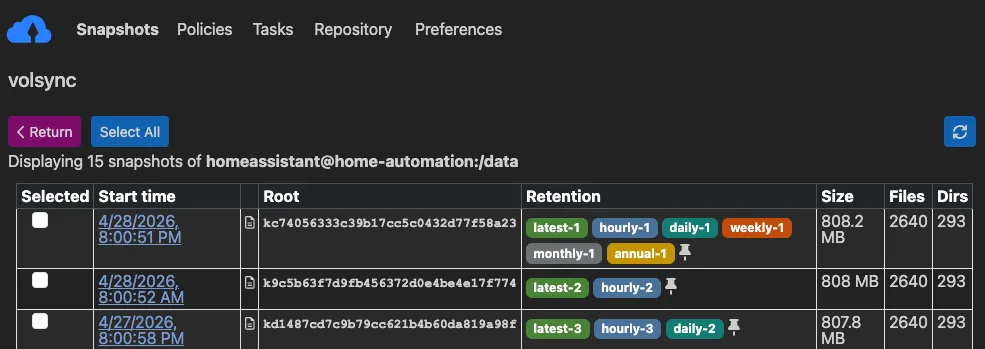
Kopia provides a Web UI that can be used to easily check what snapshots are available for each app.
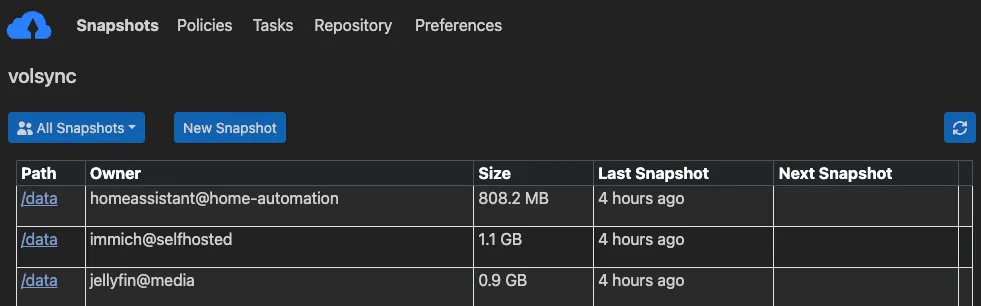
When navigating to a specific app, you can check what snapshots are available for it, when those were taken and how much storage they consumed on disk before compression by Kopia!
The following changes to the Kopia installation enable the Web UI, assuming a working Gateway API implementation is available in the cluster.
Tip
Update <DOMAIN> with a correct value for your environment.
  values:
    controllers:
      kopia:
        containers:
          app:
            image:
              repository: ghcr.io/home-operations/kopia
              tag: 0.22.3
+            env:
+              KOPIA_WEB_ENABLED: true
+              KOPIA_WEB_PORT: &port 8080
            envFrom:
              - secretRef:
                  name: kopia-secret
+            args:
+              - --without-password

+    service:
+      app:
+        ports:
+          http:
+            port: *port

+    route:
+      app:
+        hostnames:
+          - kopia.<DOMAIN>
+        parentRefs:
+          - name: envoy-internal
+            namespace: network

    ...
The --without-password argument is passed to the Kopia container so the Web UI can be accessed without login.
Moving apps to different namespaces
This setup enables easily moving apps from one namespace to another by leveraging the sourceIdentity field in the ReplicationDestination:
-
Ensure
ReplicationSourcehas created a backup in the old namespace -
Move app to new namespace with all resources and update
ReplicationDestinationto point to old namespacesourceIdentity: sourceName: app sourceNamespace: <OLD_NAMESPACE> -
PVC in new namespace will be populated from existing backup, even though the identity no longer matches
-
Wait for
ReplicationSourceto create a new backup with the new identity -
Update
ReplicationDestinationto remove reference to old namespacesourceIdentity: sourceName: app